



⭐ Quick Summary
📂 Where templates live matters: Email templates live either as local files or in cloud libraries; knowing your platform determines where to look and how to control access, sharing, versioning, and backups across teams effectively.
🖥️ Outlook storage is split: In Outlook for Windows, .oft templates save to %appdata%\Microsoft\Templates while Quick Parts live in NormalEmail.dotm; New Outlook and Outlook 365 store templates in the cloud via the My Templates add-in.
📁 Salesforce relies on folders: Salesforce templates are folder-based with permissions; Classic uses Setup paths, while Lightning centralizes under App Launcher > Email Templates, so sharing, visibility, and version control rely on folder access ownership policies.
☁️ Cloud libraries enable collaboration: HubSpot and BayEngage store templates in cloud libraries, enabling team collaboration through naming conventions, tags, owners, and changelogs to avoid duplicates, outdated content, and misaligned ecommerce modules.
🔄 Plan for migration and backups: For migration and backups, export HTML, capture assets, map merge tags, convert .oft files when moving to ESPs, and keep a central repository to accelerate onboarding, audits, and recovery processes.
If you’ve ever asked yourself, “Where are email templates stored?” right after saving one, you’re not alone.
Between desktop apps, cloud ESPs, and CRMs, templates live in very different places, and that creates chaos.
E-commerce teams often lose time hunting down “missing” templates, resolving folder permissions, and wrangling duplicates when they should be sending revenue-driving emails.
This guide provides the exact storage locations by platform, shows you how to access them quickly, and outlines governance tips to ensure your team never wonders where a template went again.
Quick answer: Where Templates Live By Platform
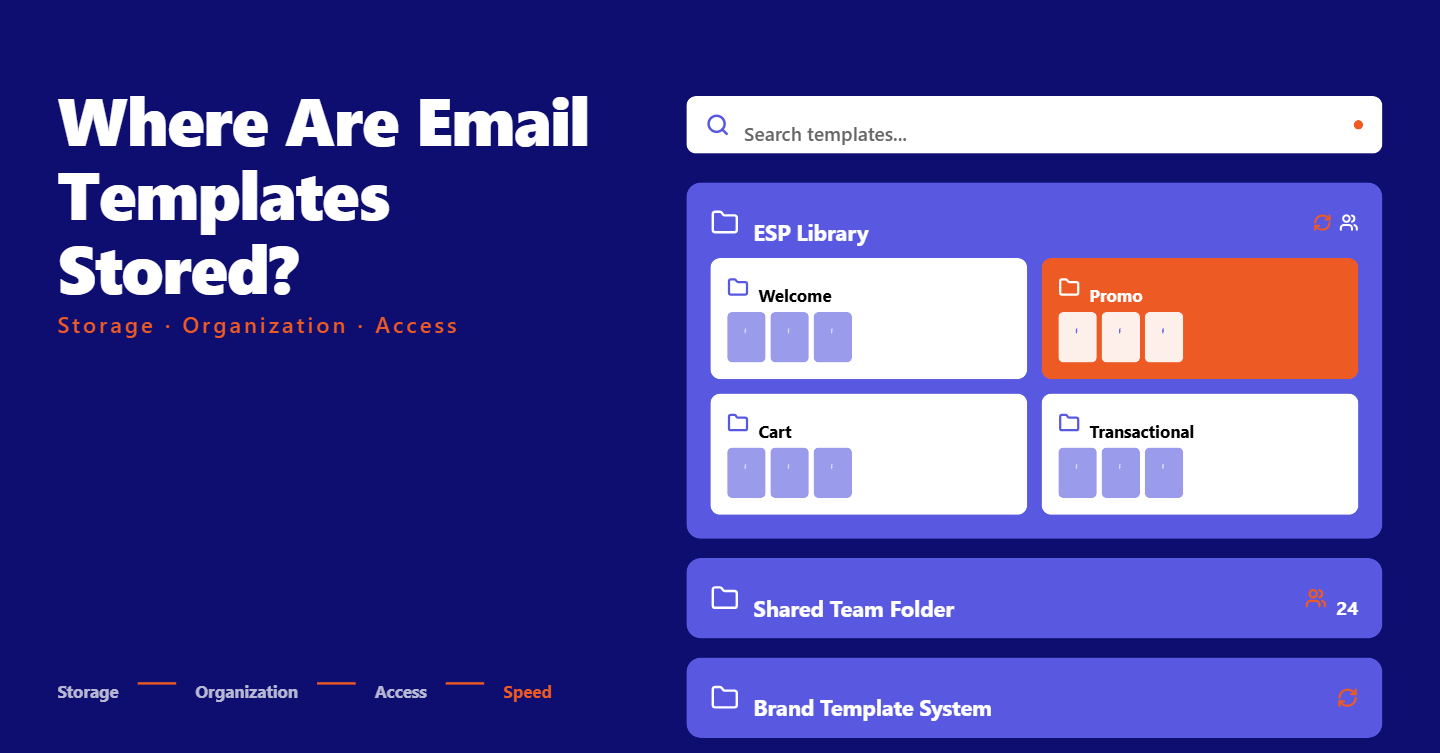
Most platforms store templates in one of two places: as local files on your device or inside a cloud library tied to your account or workspace.
Outlook for Windows uses local .oft files, while tools like Outlook 365, Salesforce, HubSpot, and TargetBay Email & SMS (BayEngage) save templates in the cloud with permissions and sharing controls.
It’s also important to distinguish full templates from drafts or snippets, such as signatures and quick parts.
Much of the confusion comes from folder permissions and user roles.
If your team can’t see templates, it’s often because they’re in a private folder, a different workspace, or you’re filtering by the wrong owner.
More Email Template Resources for You
Outlook (Windows, 365, New Outlook, Mac)
Outlook for Windows (.oft and Quick Parts)
If you’re wondering where are email templates stored in Outlook on Windows, classic Outlook saves .oft template files locally.
The default path is %appdata%\Microsoft\Templates on your Windows user profile.
If you used Quick Parts or AutoText instead of full templates, those building blocks live in a file called NormalEmail.dotm, which sits in the same templates folder.
This local setup is simple but easy to break when you switch computers or profiles, which is why team-sharing can be tricky without a shared drive or a migration plan.
Outlook 365 and New Outlook
Many users now search “where are email templates stored in Outlook 365” or “where are email templates stored in New Outlook” after not finding .oft files.
New Outlook and Outlook 365 lean into the cloud through the My Templates add-in rather than local .oft files.
Open Outlook, go to Get Add-ins, add My Templates, and your templates will be accessible from the ribbon’s My Templates pane.
Because these templates are cloud-based, they sync across devices tied to your account.
If you’re asking, “Where are my templates stored in Outlook?” in a Microsoft 365 environment, this is your answer.
Note that .oft is still supported by classic Outlook for Windows but not by New Outlook.
Outlook for Mac
Outlook for Mac does not support .oft templates. Instead, you’ll rely on the My Templates add-in for cloud-based templates or use signatures for simple, reusable blocks.
If you used to store .oft files on Windows, you’ll need to rebuild them in the add-in or migrate them to your ESP as HTML.
Salesforce (Classic vs Lightning)
Salesforce Classic
When people ask, “Where are email templates stored in Salesforce?” for Classic, the path is through Setup.
Go to Setup, then Communication Templates, and select Email Templates.
Templates are stored in folders, and access depends on the folder’s visibility and sharing settings.
If your team can’t find a saved template, verify it’s in a shared folder and that permissions allow the right users to view and edit.
Salesforce Lightning
Lightning centralizes templates under App Launcher, then Email Templates.
Here you’ll also find Email Template Folders, which control organization and access through sharing and permissions.
Version confusion typically comes from multiple similar templates scattered across private folders.
Consolidate into shared folders, define naming conventions, and assign owners to keep the library aligned.
HubSpot
Sales Templates
For the sales side, open Sales, then Templates. These templates are cloud-based and tied to your user and team permissions, which makes sharing and collaboration straightforward.
Check your HubSpot user role and team assignment if a colleague’s template doesn’t appear in your list.
Marketing Templates
Marketing templates live in two places, depending on how they’re built.
Coded templates are in Design Tools, while saved drag-and-drop email templates are accessible from Marketing Email when you create or save an email.
If you’re thinking, “Where are email templates stored?” remember that HubSpot separates marketing email assets from sales templates, so switching sections is often the fix.
Your ESP Workflow
Find Templates: Library & My Templates
Inside TargetBay Email & SMS, the BayEngage templates workflow is purpose-built for e-commerce.
Go to Email Templates from the left navigation, and you’ll land in a library of 300+ professionally designed options.
Templates are categorized by type, season, and industry, and a search bar helps you instantly find a fit for your campaign.
When you select a design, you can preview it first on desktop and mobile or choose it to enter the editor.
Your customized templates are saved under My Templates, so your “where are email templates stored” moment is solved by a single tab.
Customize In The Editor & Product Widget
The BayEngage editor is drag-and-drop and fast for ecommerce teams.
Edit content by adding columns, buttons, dividers, headings, images, menus, social blocks, text, videos, or custom HTML.
Style the body with your brand’s fonts, text colors, background colors, content width, alignment, preheader text, and link styles.
The Images tab connects you with millions of stock photos you can drag straight into your email.
For e-commerce-specific modules, the Blocks section includes header, cart, and recommended product blocks.
You can also drop in the Product widget to pull products directly from your store integration.
Click Add Products, then search by product title, SKU, or product ID. If you can’t locate the product block, ensure your store is connected.
Once integrated, products populate automatically, and you can confidently place them in flows or campaigns.
Manage Saved Templates & Exports
After customizing, rename and save the template to file it under My Templates for quick access.
From there, you can preview on desktop or mobile, edit, duplicate, delete, or send a test to up to five recipients to validate rendering.
If you need to migrate your design elsewhere, download the HTML with a click. You can also turn the template into a campaign on the spot.
This flow eliminates the guesswork of storage and discoverability, so your team can always find, share, and iterate.
Organization & Governance
A strong governance plan prevents duplicates, outdated content, and permission mishaps.
Start with a simple naming convention that captures channel, campaign type, audience, and date, such as “Email_Promo-NewArrivals_US_2026-01.”
Organize templates into folders by lifecycle stage, send type, and region. Add the template owner so it’s clear who maintains it and how updates are approved.
Use tags for seasonal and event-driven emails to improve searchability.
Maintain a lightweight version log in the template notes or a shared doc to record significant changes.
More Email Template Resources for You
Migration & Backup
When moving between platforms, treat templates like code and assets. Export HTML whenever possible and save a copy to your central repo.
Document fonts, images, and links, and store hero graphics in a predictable path so you can relink quickly.
Map variables and merge tags from the source platform to the destination, replacing proprietary tokens with the correct equivalents.
If you are coming from Outlook .oft files, convert them to HTML and then import them into your ESP for consistent rendering.
Keep a backup schedule for your master templates, especially before seasonal refreshes and major vendor changes.
Troubleshooting Checklist
If a template is “missing,” start by confirming you’re in the right account or workspace.
Check folder permissions to ensure your role has view and edit rights.
Review filters like owner, date, or tags that might hide templates in a long list.
In Outlook, verify the local path for .oft templates or open the My Templates add-in for Outlook 365 and New Outlook.
In TargetBay Email & SMS (BayEngage), switch between Library and My Templates, and confirm store integration if ecommerce product blocks aren’t appearing.
Conclusion
Knowing exactly where are email templates stored across Outlook, Salesforce, HubSpot, and TargetBay Email & SMS (BayEngage) removes roadblocks that slow ecommerce campaigns.
Standardize storage, permissions, and naming, and your team will find, share, and ship creative with confidence.
If you want an ecommerce-first workflow that keeps templates centralized and discoverable, complete, with product blocks, instant previews, and HTML export, TargetBay Email & SMS makes it effortless.